
How to fill out a PDF with Claude
Claude can help fill out PDF forms using details provided in a chat, reducing the need to enter the same information manually. Use Claude’s built-in PDF skill for a one-off form or connect Lumin to fill reusable templates.
Table of contents
- 1. Method 1: Use Claude's PDF skill for a one-off form
- 2. Method 2: Use Lumin templates for recurring PDF forms
- 3. Frequently asked questions
- 4. Fill out business documents with Claude and Lumin
Share this post
Filling out a PDF by hand means clicking into individual fields and retyping information that may already be available elsewhere. Claude can use instructions and relevant details from a chat to help complete the form.
This guide covers two ways to do it: Claude’s PDF skill works for a form you’ll fill once, while the Lumin connector is better for streamlining the documents businesses need to fill out again and again.
Method 1: Use Claude's PDF skill for a one-off form
This method works well for forms that only need to be completed once, such as registration forms or insurance claims. The process takes place in Claude, without needing a separate form-filling tool.
First, make sure code execution is enabled. In Claude on the web or desktop app, open Settings, select “Capabilities” and enable “Code execution and file creation.”
Note: The code execution and file creation setting may appear in different locations depending on the Claude interface and account type. If it isn't available, an organization administrator may need to enable it, as file creation can be disabled on Team and Enterprise plans.
Once the setting is enabled, follow these steps:
- Start a new chat and upload the PDF form.
- Tell Claude which information belongs in each field. For example: “Enter [full name] and [email address] in the contact details fields. Select ‘Virtual event’ as the location, enter [phone number] and select ‘Yes, I will attend.’ Check both boxes under Acknowledgement and Confirmation, enter today’s date and select 1 adult attendee.”
- Answer any follow-up questions about missing information or fields that need clarification.
- Download the completed PDF and check every field before submitting it.
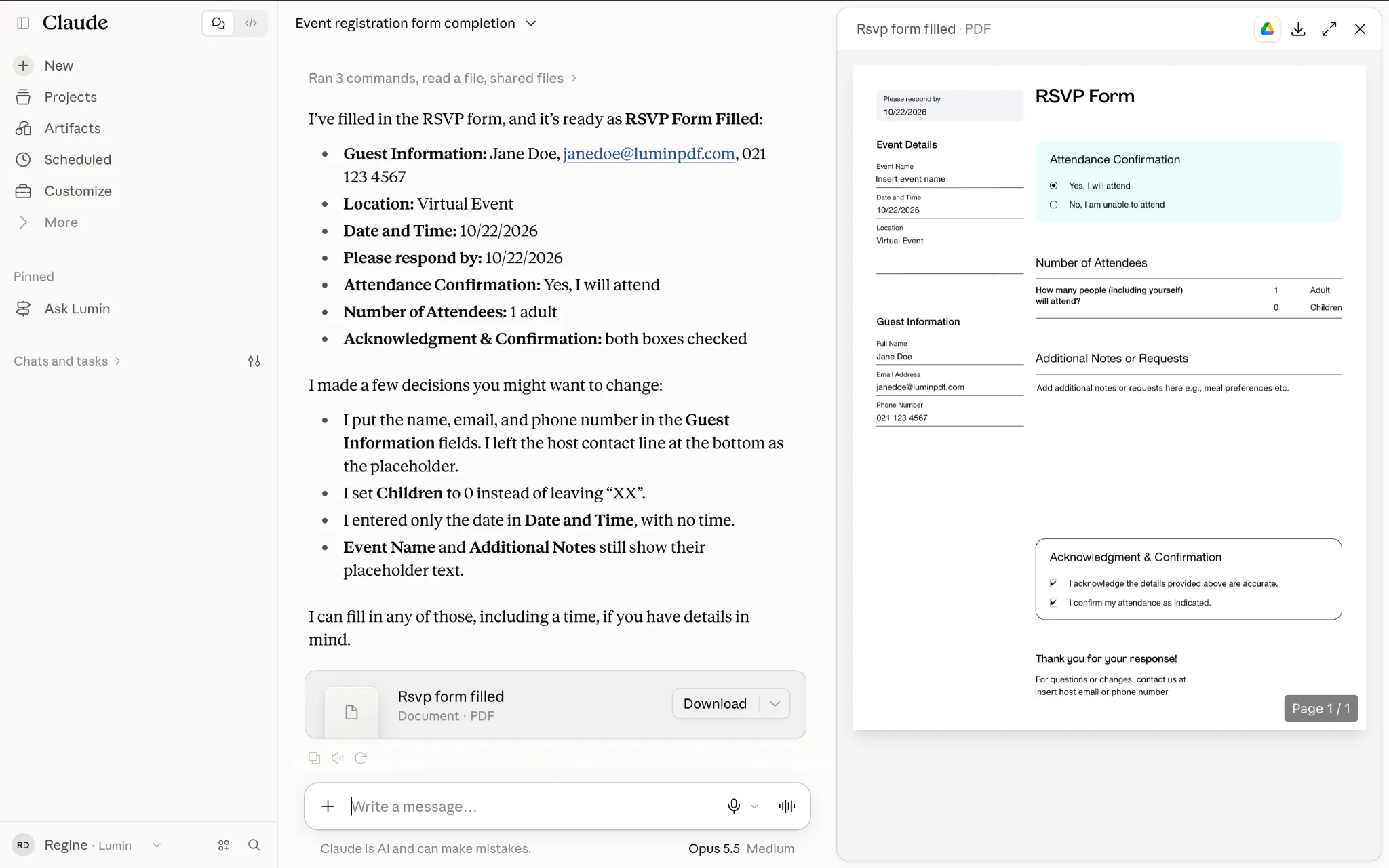
Note: Claude generates a completed file rather than editing the original PDF in place. If an answer is incorrect, ask Claude to generate a corrected version or open the downloaded file in a PDF editor to make changes.
Method 2: Use Lumin templates for recurring PDF forms
For forms that need to be completed repeatedly, the first method requires providing instructions and uploading the form again for each new submission.
With the Lumin for Claude connector, a document can be saved as a reusable template. Claude can find the template in Lumin, fill its fields using information from the conversation and even send the completed document for eSignatures. The connector is available with a free Lumin account.
This workflow is useful for business documents that follow a consistent format but contain different details for each recipient. For example, a property manager can use the same lease template for every new tenant while updating the names, unit number, rent and lease dates.
Set up your template
Once you have added the Lumin connector, you can create your template.
The fastest way to make one is to ask Claude. Share a document you’ve used before, or one you’ve just finished with Claude, and ask it to save the document as a template.
Fill out the document
When the template is ready, each new document can be handled in a single conversation.
- Ask Claude to fill out the chosen template with the required details. For example: “Fill out our month-to-month rental contract template for a new tenant in Unit 4B, starting November 1, with monthly rent of $1,850.”
- Claude finds the template in Lumin, fills in the fields and asks for any missing details (such as the security deposit or end date for a lease). Reply with the answers.
- Review the completed document from the link Claude shares. If it needs signatures, you can send it for eSignatures from the same chat.

Frequently asked questions
Can Claude turn a PDF into a fillable form?
With the Lumin connector, yes. Share a document you use regularly and ask Claude to save it as a template in Lumin. Claude sets up the details that change each time, such as names, dates and amounts, as fields to fill in. To add text and signature fields yourself, use a PDF editor such as Lumin’s.
Is there an AI that can fill out PDF forms?
Yes. Claude can fill out PDF forms using information provided in a chat. Its PDF skill is suited to one-off forms, while the Lumin connector supports reusable templates.
Which is better for Claude, PDF or Word?
Both formats work with Claude, but the better choice depends on the task. For an existing form that needs to retain its layout, upload the PDF. For content that is still being drafted and revised, Word is easier.
Is Claude's PDF skill free?
Claude's PDF skill can be used on the Free plan when code execution and file creation are available and enabled. The Lumin connector also supports free Claude and Lumin accounts, though individual features may have separate access requirements.
Fill out business documents with Claude and Lumin
Claude’s PDF skill handles a one-off form in a single chat. For the contracts, agreements and onboarding forms that come up every week, connect Lumin to Claude. You can fill saved templates, send them for eSignatures and check who has signed without leaving the conversation.

Share this post